
The best christmas wallpaper ideas put one clear scene on your screen, keep the top third calm so the clock stays readable, and match the size of the device you use. Below are 25 free ideas for phones, desktops, video calls, tablets, and kids, with the exact sizes and the steps to set each one, so your screen feels like Christmas from the first tap. These christmas wallpaper ideas work on phones, desktops, tablets, and video calls alike.
Key Facts
| Fact | Detail |
|---|---|
| Ideas in this guide | 25, in 5 groups of 5 |
| Cost | Free, from Unsplash, Pexels, and Pixabay |
| Phone lock screen shape | Tall, 9:16 |
| Desktop and video call shape | Wide, 16:9 |
| iPhone lock screen size | 1170 x 2532 (iPhone 12 to 14), 1179 x 2556 (iPhone 15 and 16), 1290 x 2796 (Plus and Pro Max) |
| Android phone size | 1080 x 2400 for most phones, about 1440 x 3200 for flagships |
| Desktop size | 1920 x 1080, or 2560 x 1440 for sharper screens |
| Video call size | 1920 x 1080 (Zoom, Teams, and Meet) |
| Best time to set one | Early December, and swap it again for Christmas week |
| Christmas Day 2026 | Friday, December 25 |
| Christmas searches peak | Around Saturday, December 19, 2026 |
How to Pick a Christmas Wallpaper That Actually Looks Good
A wallpaper is not a poster. It sits behind a clock, notifications, widgets, and app icons, so the best ones follow a few simple rules. First, pick one clear subject and place it low or off to one side. A lone lit tree in the bottom third, a cabin in the lower left, or a fox curled up near the bottom edge all work, because the top of the screen stays open for the time and date. Second, keep the top third calm. Night sky, falling snow, fog, and soft bokeh all work as quiet space.
Third, use no text. Your phone adds the time and date itself, and any words baked into the picture will fight with it. Fourth, let the mood come from light. Warm window glow, fairy-light bokeh, moonlight on snow, and candlelight do more for a festive feel than piling on ornaments.
The same rules hold on a desktop, with one change: on Windows the icons sit on the left, so keep that side quiet, and on a Mac mirror it, because the icons sit on the right. For a video call, the rule is even simpler: the background must stay soft and dark enough that your face is the brightest thing in the frame. If you follow these four rules, almost any of the 25 christmas wallpaper ideas below will look good on the first try. These christmas wallpaper ideas follow the same simple rules on every screen.
Phone Lock Screens
These five christmas wallpaper ideas are made for the screen you see most. They are all tall, 9:16, with the main subject low and the top third open, so the clock never covers the best part of the picture. If you liked the autumn set in our November Wallpaper and Lock Screen Ideas for Your Phone, this is the Christmas follow-on, with the same layout rules and a warmer palette.
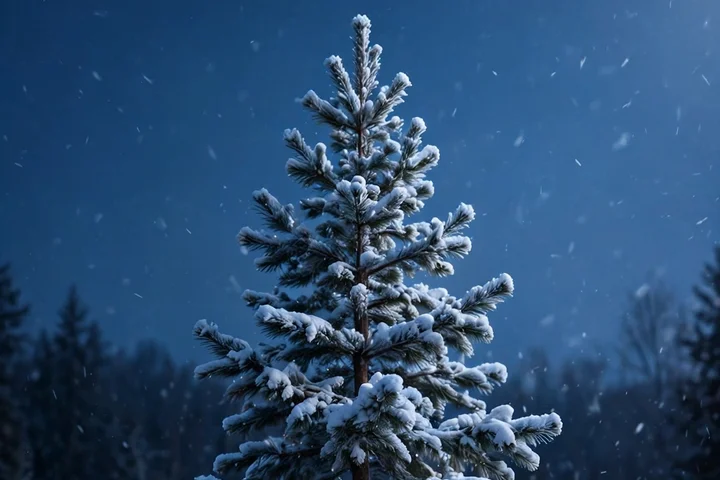
1. Snowy Tree at Blue Hour
A single pine tree covered in snow, shot at blue hour, with a deep navy sky above it and soft snow falling. The tree sits in the lower third, the sky stays plain, and the clock lands on clean sky. It is the calmest wallpaper on this list, and it works on any phone because the dark blue makes white text easy to read.
2. Cozy Fireplace Glow
A fireplace with a low fire, stockings on the mantel, and warm amber light spilling across a dark room. The fire sits low in the frame and the upper half is soft shadow. This one feels warm on a cold morning, and it pairs well with a dark-mode phone because the whole image is already dark.
3. Gold Bokeh Lights
Out-of-focus gold lights on a black background, with the brightest cluster low and to the right. Bokeh is the safest wallpaper choice there is: no subject to crop badly, no text, and the clock is always readable. Pick a version with larger, softer circles if your phone shows a lot of notifications, because the glow hides the clutter.
4. Pastel Pink Tree
A small pastel pink tree with ribbon bows and tiny gold stars, on a soft pink and mint background, with the top third plain. It is the prettiest option for anyone who wants Christmas without red and green. Keep the tree in the lower third and the stars small, or the lock screen clock will sit on top of the decorations.

5. Minimalist Pine Branch
One pine branch with a single red ornament in the lower right corner, on a plain warm cream background, with soft shadow and lots of empty space. One object and one color reads as calm, and it is the best choice if you use widgets, because nothing competes with them. Name the empty space when you search for it: “minimalist Christmas wallpaper cream” finds far better results than “Christmas wallpaper” alone.
Desktop and Laptop
Desktop wallpapers are wide, 16:9, and they live behind icons, folders, and open windows, so the subject goes to one side and the other side stays quiet. These five are the strongest of the christmas wallpaper ideas for a work or home computer, and they look just as good on a TV screen during a party.
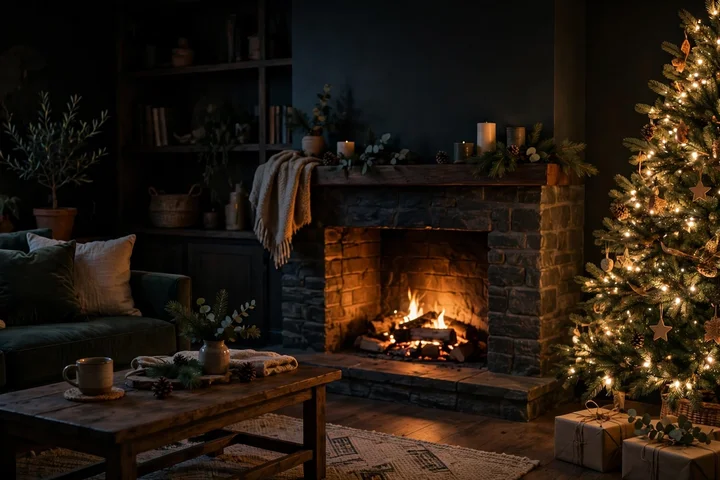
6. Snowy Village Night
A small village at night with glowing windows, snow on the roofs, and a dark blue sky full of stars. The village sits across the bottom of the frame and the sky fills the top, which is exactly the layout a desktop wants. It is the closest thing to a Christmas card on this list, and it stays readable behind a full row of desktop icons.
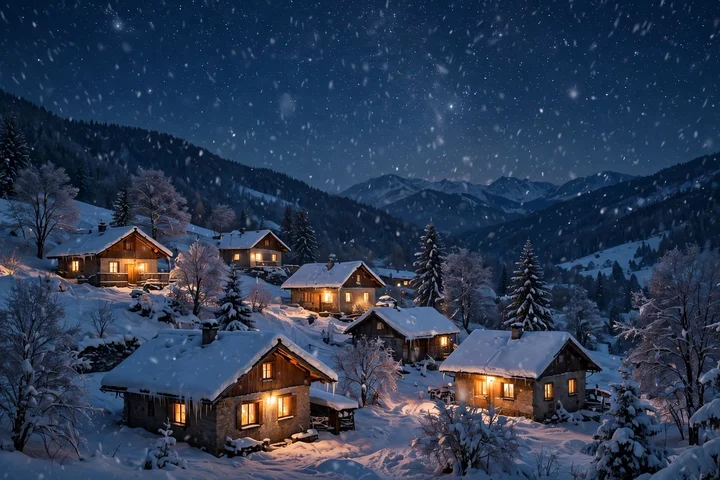
7. Lit Tree in the Snow
A big lit tree standing alone in the snow, with a star on top and soft light falling on the ground around it. Put the tree on the right side of the frame and keep the left side open for your icons. The warm light against the cold blue snow is the contrast that makes this one feel like Christmas instead of just winter.
8. Red and Gold Bokeh
A deep red background with gold bokeh lights scattered across it, brightest in one corner and fading toward the other. It is bold, it is festive, and it hides desktop clutter better than any photograph on this list, because the whole image is soft. Use it if your desktop is usually full of files and you still want the screen to feel tidy.
9. Cabin Window
A cabin window at night, seen from inside, with snow falling outside and a warm lamp glowing beside the frame. The window sits in the center and the dark room frames it, which gives your desktop a sense of depth. It is the coziest desktop on this list, and it works well as a second monitor background too.
10. Vintage Card Style
A vintage Christmas card scene: a horse-drawn sleigh, a snowy lane, muted colors, and a soft paper texture. It suits anyone who likes old-fashioned Christmas, and it pairs beautifully with the ornaments on a real tree. If your tree is already dressed, match the wallpaper to it — our Christmas Tree Ornaments Ideas will help you pick a palette that ties the room and the screen together.
Video Call Backgrounds
A video call background has one job: make you look good and stay out of the way. It must be soft, a little dark, and free of bright spots near your face, or the camera will expose for the background and turn you into a shadow. These five are all 16:9 and tested for calls.

11. Soft Lights
A midnight blue background with a few soft, out-of-focus lights in the lower corners and nothing bright in the center. Your face sits in the middle, the lights frame you, and the camera has nothing to fight with. This is the safest video call background on this list, and the one to use for work calls.
12. Fireplace for Calls
A fireplace with a gentle fire, shot straight on, with the flames low and the mantel decorated with a simple garland. It reads as warm and festive on camera without moving or flickering, because it is a still image. Keep the fire small in the frame: a big bright fire will make your webcam darken your face.
13. Tree With Warm Lights
A Christmas tree with warm white lights, placed to one side of the frame, with a dark wall behind it. The lights give the call a festive glow, and the dark wall keeps your face well lit. Sit so the tree is behind your shoulder, not directly behind your head, or the star will poke out of your hair on camera.
14. Snowy Forest
A snowy pine forest at dusk, soft and blue, with the trees blurred into layers. It is calm, professional, and seasonal at the same time, which makes it the best choice for a call with people you do not know well. The blur is the point: a sharp forest would look busy and distracting at video-call size.
15. Bookshelf With Garland
A bookshelf draped with a simple pine garland and a few warm fairy lights, with books and a mug on the shelves. It looks like a real room, which makes it the most natural background on this list, and it suits anyone who does not want their call to look like a Christmas card. Keep the garland high in the frame so it does not sit behind your head.
Tablet and Social Banners
Tablets are wider than phones and narrower than desktops, and social banners are wider still, so these five ideas are built around a single strong scene that survives a crop in any direction. They also work as a Facebook cover, a YouTube banner, or a tablet home screen.

16. Winter Woodland
A wide winter woodland with tall pines, fresh snow, and a pale sky, with a deer standing quietly in the distance. The scene is wide and even, so it crops well to any shape, and the pale sky leaves room for a profile picture or a banner title. It is the most versatile wallpaper on this list.
17. Gingerbread Village
A row of little gingerbread houses with icing roofs, candy windows, and a dusting of powdered sugar snow, set on a wooden board. It is cheerful, it is colorful, and it is the best choice for a family tablet, because kids love it and it never looks serious. The houses sit in a line across the middle, so the top and bottom stay clear.
18. Starry Night
A deep blue night sky full of stars, with a single bright star low on the horizon and a thin line of snowy hills at the very bottom. It is simple, it is elegant, and it works as a banner because the sky is empty enough for text. If you add a greeting to a social banner, this is the background to put it on.
19. Candy Cane Stripes
Diagonal red and white stripes, soft and slightly faded, with a single sprig of pine in one corner. It is the boldest wallpaper on this list, and it works best on a tablet, where the stripes read as a pattern rather than a shout. Use a faded version, not a bright one, or the stripes will fight with your app icons.
20. Snowy Mountains
Snowy mountains under a clear blue sky, with a small cabin in the valley and a thin trail of smoke rising from its chimney. The mountains fill the frame, the cabin gives it a focal point, and the blue sky keeps it bright. It is the best choice for a tablet that lives in a kitchen, because it looks good from across the room.
Kids, Cute, and Printable
The last five christmas wallpaper ideas are for kids, and for anyone who wants their screen to make them smile. They are also the easiest to print: save one, print it, and it becomes a card, a gift tag, or a bit of bedroom decor.
21. Reindeer With a Red Nose
A friendly reindeer with a bright red nose, big soft eyes, and a snowy background, drawn in a simple storybook style. It is the best wallpaper for a young child, because the reindeer is big, clear, and easy to spot from across the room. Keep it on the lock screen, where it shows every time the phone wakes.
22. Smiling Snowman
A smiling snowman with a carrot nose, a striped scarf, and a top hat, standing in soft snow with a few flakes falling. The snowman sits low in the frame and the sky above is plain, so the clock stays readable. It is the classic kids’ wallpaper, and it never goes out of style.
23. Santa’s Workshop
A warm workshop scene with a workbench, a half-built toy, a string of lights, and a window showing snow outside. It is busy in a good way, with lots of little details for a child to find, and it works best on a tablet, where the bigger screen shows the whole scene. Save it for December, when the workshop story feels real.
24. Little Penguin
A little penguin in a red scarf, standing on an ice floe with a few snowflakes around it, on a pale blue background. It is cute without being babyish, so it works for older kids too, and the pale blue keeps the screen bright. Pair it with a matching penguin phone case if you want the whole look to tie together.
25. Gingerbread House
A gingerbread house with icing icicles, gumdrop trim, and a candy path, on a snowy base with a few wrapped presents beside it. It is the sweetest wallpaper on this list, and the one most likely to make a child ask to build the real thing. If they do, start early: a gingerbread house takes a day to build and a day to dry before it can be decorated.

The Right Size for Every Screen
The wrong shape is the usual reason a wallpaper looks off. A wide image on a phone gets cropped to the middle, and a tall one on a video call leaves bars at the sides. These are the sizes the platforms themselves recommend, checked in November 2026.
| Where you will use it | Shape | Size to aim for | File types |
|---|---|---|---|
| iPhone lock screen | Tall, about 19.5:9 | 1170 x 2532 (iPhone 12 to 14), 1179 x 2556 (iPhone 15 and 16), 1290 x 2796 (Plus and Pro Max) | JPG or PNG from Photos |
| Android phone | Tall | 1080 x 2400 for most phones, about 1440 x 3200 for flagships | JPG or PNG |
| Zoom | Wide, 16:9 | 1280 x 720 minimum, 1920 x 1080 is sharper | JPG or 24-bit PNG |
| Microsoft Teams | Wide, 16:9 | At least 1920 x 1080 | JPG, PNG, or BMP |
| Google Meet | Wide, 16:9 | 1920 x 1080 is a good target | JPG or PNG |
| Desktop wallpaper | Wide, 16:9 | Match your screen, often 1920 x 1080 | JPG or PNG |
| Tablet | 3:4 or 4:3 | 1536 x 2048 | JPG or PNG |
Note that Zoom, Teams, and Meet do not take WebP, so if you download a wallpaper as a WebP file, save it as a JPG or PNG first. Most phones are a little taller than 9:16, so your phone will trim a sliver off the left and right sides of a tall image. Keep the main subject near the center, or pick a design with empty space at the edges.
How to Set Your Christmas Wallpaper
Setting a wallpaper takes less than a minute on any device, and the steps are nearly the same everywhere: save the picture first, then pick it as your background.
On an iPhone, open Settings, tap Wallpaper, then tap Add New Wallpaper. Choose Photos, pick your picture, and tap Add. Tap Set as Wallpaper Pair to use it on both screens, or Customize Home Screen to give the Home Screen its own look. You can also touch and hold the Lock Screen to open the wallpaper gallery and swipe between the ones you have saved. Apple’s own guide walks through every step, including how to customize the clock and add widgets — see Apple’s guide to changing your iPhone wallpaper if you get stuck.
On an Android phone, save the picture to your photo library, then long-press an empty spot on the Home Screen and tap Wallpaper and style. The exact label varies by maker, but the route is the same: pick the picture, pinch to zoom and drag until the subject sits where you want it, then tap Set. Choose Lock Screen, Home Screen, or both.
On a Windows computer, right-click the picture and choose Set as desktop background, or open Settings, then Personalization, then Background, and pick the picture from there. On a Mac, open System Settings, click Wallpaper, then Add Photo and choose your picture, or right-click the picture in Finder and choose Set Desktop Picture.
For video calls, open Zoom, go to Settings, then Background and Effects, then Virtual Backgrounds, and add your picture. In Teams, join a meeting, click More, then Apply background effects, and add the picture. In Google Meet, click Change background before you join, then add the picture. A still image is always better than a video background for a Christmas call, because it never moves and never distracts.
Where to Get Free Christmas Wallpapers
The best free sources are the big free-photo libraries. Unsplash, Pexels, and Pixabay all have large Christmas collections, and every photo there is free to download with no watermark and no account needed. Search for the exact scene you want — “snowy Christmas tree blue hour” finds better pictures than “Christmas wallpaper” — and filter for the shape you need: tall for a phone, wide for a desktop.
Check the size before you save. A photo that is 1200 pixels on its long side is plenty for a video call, where your face covers a good part of the frame, and fine for a phone. On a large, high-resolution desktop screen it will look a little soft, so for a desktop or a new iPhone, pick a photo that is at least 1920 pixels wide, or make your own in a free editor at the exact size you need. Avoid any site that asks you to sign up before it shows the download button, and avoid wallpapers with a watermark baked into the picture: a watermark will sit on your screen all December.
Which Wallpaper Fits You
| If you want | Pick | Why it works |
|---|---|---|
| Calm and readable | Snowy Tree at Blue Hour | Dark sky, plain top third, clock always clear |
| Warm and cozy | Cozy Fireplace Glow | Amber light, dark frame, pairs with dark mode |
| Safe for work calls | Soft Lights | Nothing bright in the center, face stays lit |
| Pretty and soft | Pastel Pink Tree | Gentle colors, small tree, clock stays clear |
| Bold and festive | Red and Gold Bokeh | Hides desktop clutter, reads as Christmas at a glance |
| For a child | Reindeer With a Red Nose | Big, clear, friendly, easy to spot |
| For a party | Winter Woodland | Wide, even, crops to any shape |
If you are still unsure, start with the Snowy Tree at Blue Hour on your phone and the Soft Lights background on your calls. They are the two safest choices on this list, and you can swap them for something bolder once you see how they look. And if your whole home is getting the Christmas treatment, match the screen to the room: a tree, a garland, and a wallpaper in the same palette make the season feel planned instead of random. Our Christmas Eve Outfits guide uses the same idea for the night itself, so your screen, your tree, and your outfit all tell the same story.
Frequently Asked Questions
What size should a Christmas wallpaper be for an iPhone?
Use 1170 x 2532 for an iPhone 12 to 14, 1179 x 2556 for an iPhone 15 or 16, and 1290 x 2796 for a Plus or Pro Max. Any tall picture in a 9:16 shape will work, but these exact sizes keep the image sharp and stop the phone from cropping the sides.
Where can I get free Christmas wallpapers with no watermark?
Unsplash, Pexels, and Pixabay are the safest free sources. Every photo there is free to download with no watermark and no account needed. Search for the exact scene you want, check the size before you save, and avoid any site that asks you to sign up before it shows the download button.
How do I set a Christmas wallpaper on my iPhone?
Open Settings, tap Wallpaper, then tap Add New Wallpaper. Choose Photos, pick your picture, and tap Add, then tap Set as Wallpaper Pair to use it on both screens. You can also touch and hold the Lock Screen to open the wallpaper gallery and swipe between saved designs.
Why does my Christmas wallpaper look cropped?
Your phone is probably taller than the picture. Most phones are a little taller than 9:16, so they trim a sliver off the left and right sides of a tall image. Pick a design with empty space at the edges, or keep the main subject near the center, and the crop will never cut anything important.
Can I use a Christmas wallpaper as a Zoom background?
Yes. Save the picture as a JPG or PNG, because Zoom does not take WebP, then open Zoom, go to Settings, then Background and Effects, then Virtual Backgrounds, and add it. Pick a soft, slightly dark image with nothing bright in the center, so your face stays the brightest thing in the frame.
When should I change my Christmas wallpaper?
Set one at the start of December and swap it again for Christmas week, when the season peaks. Christmas searches reach their highest point around Saturday, December 19, 2026, and Christmas Day itself is Friday, December 25, so a fresh wallpaper in the last week of December feels timely instead of tired.
The right christmas wallpaper ideas do more than decorate a screen: they set the mood every time you pick up your phone or open your laptop. Pick one scene, set it at the right size, and let it carry you through December. These christmas wallpaper ideas are all free, all easy to set, and all ready to use today, so the only hard part is choosing which one you like best.
Leave a Reply