
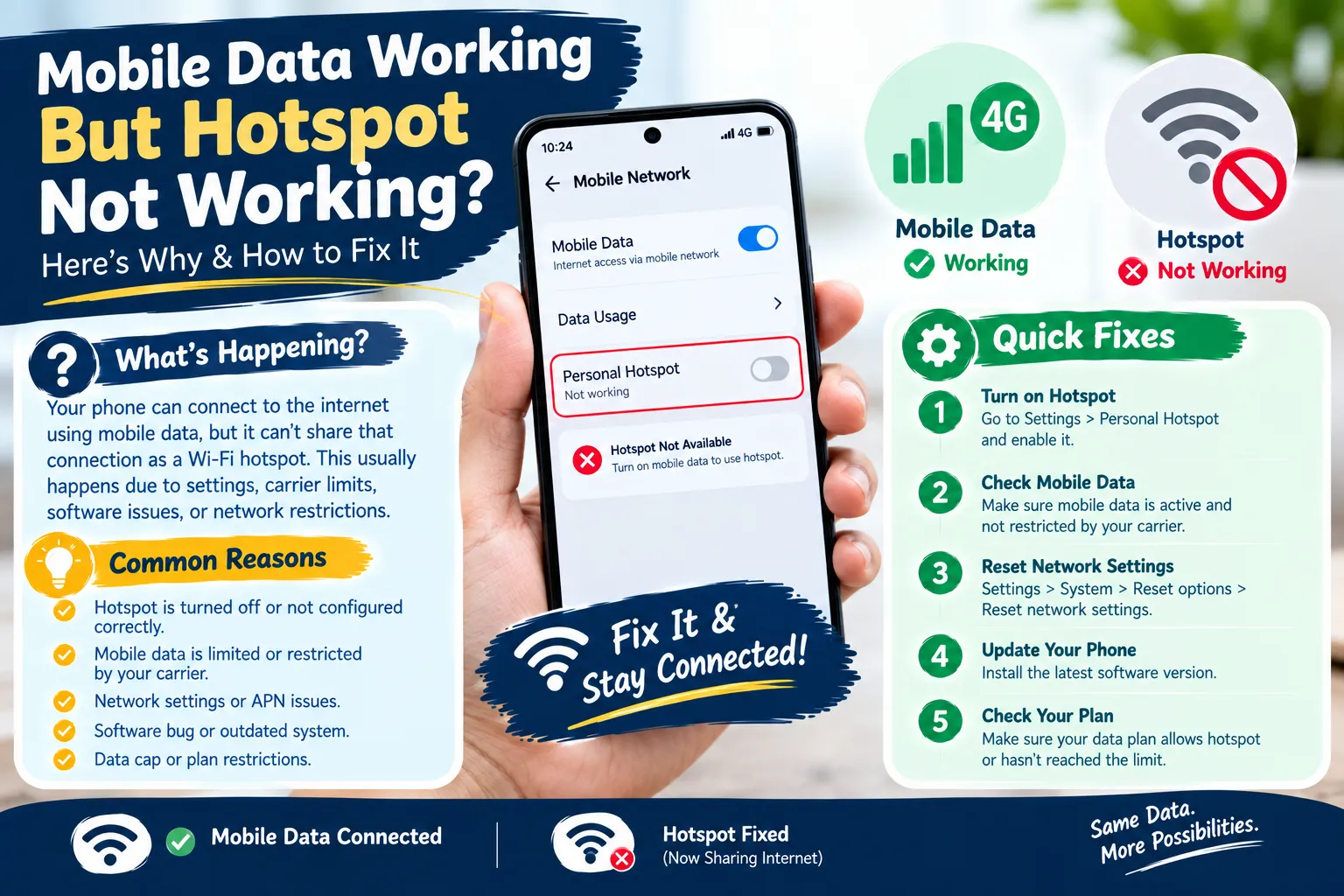
The most common cause, by far: your carrier plan includes regular mobile data but a separate, smaller hotspot/tethering data allowance — and once that’s used up, hotspot access slows or stops even though your phone’s own data keeps working fine. This single distinction explains a large share of “data works, hotspot doesn’t” cases, and it’s worth checking first before touching any settings.
If that’s not it, the next most likely causes are a stuck battery-saving mode, a Wi-Fi band mismatch with the connecting device, or a temporary glitch that a network reset clears. Here’s the full troubleshooting sequence, in the order worth trying.
Quick Diagnosis: Why This Happens
| Likely Cause | How to Confirm |
|---|---|
| Carrier hotspot allowance used up | Check your carrier app or account for a separate “hotspot data” or “tethering” total, distinct from your regular data |
| Battery Saver / Low Power Mode | Check if either is currently on — both can quietly disable or limit hotspot |
| Wrong Wi-Fi band | The connecting device may not support 5GHz — try switching your hotspot to 2.4GHz |
| Temporary software glitch | A simple restart of both devices often resolves this without any deeper fix |
| Stale saved network on the connecting device | The other device may be holding old, incorrect credentials from a previous connection |
| Carrier-side tethering restriction | Some plans block tethering entirely regardless of your settings — this requires a call to your carrier, not a settings fix |
Step-by-Step: Try These First (Works for Any Device)
- Restart both devices — your phone and the device trying to connect. This resolves a surprising share of hotspot issues on its own.
- Confirm mobile data works outside the hotspot — if your regular browsing works fine, the cellular connection itself isn’t the problem, which points toward a hotspot-specific setting or allowance.
- Turn off Battery Saver / Low Power Mode. Both iOS and Android battery-saving modes can restrict or fully disable hotspot functionality without an obvious warning.
- Check your hotspot data allowance through your carrier’s app or account portal — this is the single most common cause and the easiest to miss, since your phone’s hotspot toggle can show as “on” even when your carrier has throttled or blocked the connection server-side.
- Switch the Wi-Fi band from 5GHz to 2.4GHz (or vice versa) — older laptops and some smart devices don’t support 5GHz, which shows up exactly as “hotspot on, but nothing can connect.”
- Forget the hotspot network on the connecting device, then reconnect fresh with the current password — this clears stale saved credentials that can silently block a new connection.
- Update your phone’s software. Outdated iOS or Android versions are a genuine, common cause of hotspot bugs that get fixed in routine updates.
- Reset network settings as a last resort before contacting your carrier (see device-specific steps below) — this clears deeper, harder-to-diagnose glitches but also erases saved Wi-Fi networks and passwords, so treat it as the final step, not the first one.
Mobile Data Working But Hotspot Not Working on iPhone
- Settings > Personal Hotspot — confirm the toggle is on, and turn on both Allow Others to Join and Maximize Compatibility (the latter improves compatibility with non-Apple devices trying to connect).
- Check Low Power Mode (Settings > Battery) — turn it off before testing the hotspot.
- Confirm your carrier plan includes hotspot/Personal Hotspot support. Some older or restricted plans disable this specifically even though regular data works.
- Restart your iPhone and the connecting device.
- Update iOS (Settings > General > Software Update).
- Reset network settings if the above doesn’t resolve it: Settings > General > Transfer or Reset iPhone > Reset > Reset Network Settings. This erases saved Wi-Fi networks and passwords, so you’ll need to reconnect to your home Wi-Fi afterward.
Mobile Data Working But Hotspot Not Working on Android
(Stock Android / Pixel — Samsung-specific steps are in the next section.)
- Settings > Network & internet > Hotspot & tethering > Wi-Fi hotspot — confirm it’s turned on.
- Check Battery Saver (Settings > Battery) and turn it off before testing.
- Check the hotspot band setting in the same Wi-Fi hotspot menu — switch between 2.4GHz and 5GHz if the connecting device isn’t finding the network.
- Confirm your carrier’s tethering allowance hasn’t been exhausted — this is worth checking directly in your carrier’s app even if the toggle shows hotspot as active.
- Reset network settings: Settings > System > Reset options > Reset Wi-Fi, mobile & Bluetooth.
Why Is My Hotspot Not Working on Samsung?
Samsung’s menu structure and Auto Hotspot feature make this worth its own section:
- Settings > Connections > Mobile Hotspot and Tethering > Mobile Hotspot — confirm it’s on.
- Check Auto Hotspot. If you have multiple Samsung devices on the same Samsung account, Auto Hotspot lets them connect automatically without a password — but if it’s misconfigured, it can also create connection conflicts. In the same menu, tap Auto Hotspot to check its state.
- Check Data Saver (Settings > Connections > Data usage > Data saver) — this can restrict background data in ways that affect hotspot reliability.
- View your hotspot’s network name and password under Mobile Hotspot > Information, and make sure the connecting device is using the current credentials, not a saved older one.
- Switch the hotspot band: Settings > Connections > Mobile Hotspot and Tethering > Mobile Hotspot > Configure > Band, and try 2.4GHz if 5GHz isn’t connecting.
- Reset network settings: Settings > General management > Reset > Reset network settings.
Mobile Data Working But Hotspot Not Working on Huawei
Huawei devices use a similar structure with some naming differences:
- Settings > Wireless & networks > Personal Hotspot — confirm it’s enabled.
- Check Power Saving Mode, which can restrict background and hotspot functionality similarly to iOS/Android battery savers.
- Confirm your carrier plan and APN settings are correctly configured — Huawei devices sold internationally or used with a different carrier than originally intended sometimes need manual APN configuration for both data and hotspot to work correctly together.
- Restart the device, and if the issue persists, reset network settings through Settings > System & updates > Reset > Reset network settings (menu wording varies slightly by Huawei software version).
Why Is My Hotspot Not Working When I Have Unlimited Data?
This is one of the most common points of confusion, so it’s worth a direct answer: “unlimited data” and “unlimited hotspot data” are frequently two different things on your carrier plan. Most major carriers sell hotspot/tethering access as a separate, often smaller, high-speed allowance — once that specific allowance is used, hotspot speeds can drop dramatically or stop working even though your phone’s own regular data usage remains genuinely unlimited. Check your carrier’s app or account portal specifically for a “hotspot data” or “mobile hotspot” usage total, separate from your overall data usage, before assuming it’s a device problem.
Why Is My Phone Not Sharing the Hotspot? / Why Won’t It Connect to Another Phone?
If your hotspot shows as active on your phone but a specific device (including another phone) won’t connect, the issue has often shifted to the connecting device, not the one broadcasting the hotspot:
- Forget the network on the connecting device and reconnect fresh, rather than trying to reuse a saved connection.
- Double-check the password, especially if it was recently changed (view/reset it under your hotspot settings).
- Try the other Wi-Fi band — this is a very common fix specifically for older devices trying to join a newer phone’s 5GHz-only hotspot.
- Check the connected-device limit. Most phones support somewhere between 5–15 simultaneous hotspot connections; if you’re at the limit, disconnect an idle device first.
- Try connecting via USB or Bluetooth tethering instead of Wi-Fi, if available, as a way to isolate whether the problem is specifically with Wi-Fi hotspot broadcasting.
How to Reset Hotspot Settings
If targeted fixes haven’t worked, a full network reset clears accumulated glitches that are otherwise hard to diagnose individually:
- iPhone: Settings > General > Transfer or Reset iPhone > Reset > Reset Network Settings
- Samsung: Settings > General management > Reset > Reset network settings
- Stock Android / Pixel: Settings > System > Reset options > Reset Wi-Fi, mobile & Bluetooth
- Huawei: Settings > System & updates > Reset > Reset network settings (wording varies by software version)
Before you reset: this erases all saved Wi-Fi networks and their passwords (though not your personal files or photos), so you’ll need to reconnect to your home and work Wi-Fi networks afterward. It’s a reasonable last step before contacting your carrier, not a first thing to try.
When It’s Actually Your Carrier, Not Your Phone
If you’ve worked through device-side fixes and hotspot still won’t connect, it may be a carrier-side restriction rather than anything on your phone:
- Some plans block tethering entirely regardless of your device settings
- Some require a specific add-on or plan tier to enable hotspot at all
- A used-up hotspot allowance (covered above) is the most common version of this
In any of these cases, the fix isn’t in your settings menu — it requires contacting your carrier directly to confirm what your specific plan actually includes.
Frequently Asked Questions
Why is my mobile data working but my hotspot isn’t? The most common cause is a separate, often smaller hotspot/tethering data allowance on your carrier plan that’s been used up, even though your regular mobile data remains active. Other common causes include a battery-saving mode restricting hotspot, a Wi-Fi band mismatch with the connecting device, or a temporary glitch fixed by a restart or network reset.
How do I reset my hotspot settings? On iPhone: Settings > General > Transfer or Reset iPhone > Reset > Reset Network Settings. On Samsung: Settings > General management > Reset > Reset network settings. On stock Android: Settings > System > Reset options > Reset Wi-Fi, mobile & Bluetooth. This clears saved Wi-Fi networks, so you’ll need to reconnect to them afterward.
Why is my hotspot not working when I have unlimited data? “Unlimited data” often refers only to your regular phone data, while hotspot/tethering access is a separate, sometimes capped allowance on the same plan. Check your carrier app specifically for hotspot data usage, separate from your overall data total.
Why is my phone not sharing the hotspot? This usually means the issue is on the connecting device’s end rather than your phone — try forgetting the saved network on that device and reconnecting fresh, confirm the password is current, and try switching the Wi-Fi band if the device doesn’t support 5GHz.
Why is my hotspot not connecting to another phone? Check that both devices are using the current hotspot password, try switching between 2.4GHz and 5GHz bands, confirm you haven’t hit your phone’s simultaneous-connection limit, and try forgetting and rejoining the network on the connecting phone.
Final Thoughts
Before diving into settings changes, check the one thing that resolves this most often: your carrier’s separate hotspot data allowance, distinct from your regular mobile data. If that’s not it, work through the fixes in order — restart, battery saver, Wi-Fi band, software update — before reaching for a full network reset, which should be your last step rather than your first.
Leave a Reply